
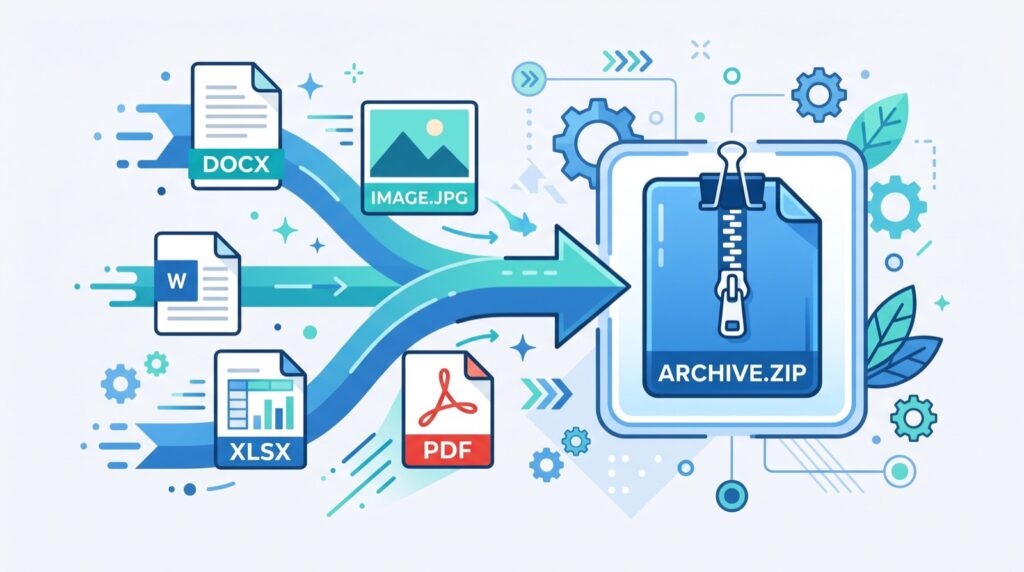
Images to PDF Converter: The 2026 Guide to Merging Photos Into One File
An images to PDF converter has quietly become one of the most-used utilities on the modern web, and for good reason. Whether you are stitching scanned receipts into an expense report, bundling ID photos for a visa application, or turning a folder of screenshots into a shareable document, converting images to PDF keeps everything tidy in a single, universal file. In 2026, the demand for fast, private, browser-based conversion tools has only grown as more people work remotely and handle paperwork digitally.
This guide walks you through exactly how image-to-PDF conversion works, when you should reach for it, and how to get the cleanest possible output every single time. No software installs, no bloated apps, just practical steps you can follow today.
Why Convert Images to PDF in the First Place?
Individual image files are convenient for viewing, but they fall apart when you need to send several together. Email attachments get messy, page order gets lost, and recipients often struggle to open unfamiliar formats. PDF solves all of that.
A PDF locks your images into a fixed layout that looks identical on every device. It preserves order, prints predictably, and can be password protected. That is why banks, universities, and government portals almost always request PDFs rather than loose JPGs.
- Universality: Every phone, tablet, and computer opens PDF natively.
- Consistency: Fonts, spacing, and image order stay fixed.
- Compactness: One file is easier to store, name, and share than twenty.
- Professionalism: A single PDF simply looks more polished than a zip of photos.
How Does an Images to PDF Converter Actually Work?
Under the hood, the process is simpler than most people expect. When you upload one or more images, the tool reads each file, calculates its dimensions, and places it onto a page canvas. It then wraps those pages into the PDF document structure and hands you a downloadable file.
Modern browser-based tools do this entirely on your device using JavaScript, which means your photos never leave your computer. That privacy advantage is a big reason a reliable images to PDF converter beats emailing files to yourself or trusting a random desktop program.
The typical conversion flow
- Select or drag in your JPG, PNG, WEBP, or HEIC images.
- Reorder the pages by dragging thumbnails into the sequence you want.
- Choose page size, orientation, and margins if you need them.
- Click convert and download the finished PDF instantly.
Choosing the Right Settings for Clean Output
Getting a crisp, professional result depends on a handful of choices. The table below compares the most common settings and when each one matters.
| Setting | Best For | What to Avoid |
|---|---|---|
| Fit to page | Documents, receipts, forms | Stretching photos out of ratio |
| Original size | High-resolution artwork | Oversized files that email rejects |
| A4 portrait | Printable paperwork | Mixing landscape scans awkwardly |
| No margin | Edge-to-edge photo books | White borders on visual work |
According to the ISO 32000 standard that defines PDF, the format is designed to render identically regardless of the software that opens it, which is exactly why choosing a standard page size like A4 keeps your document predictable across every viewer.
Watch your image resolution
Resolution decides whether your PDF looks sharp or blurry. For on-screen reading, 150 DPI is plenty. For printing, aim for 300 DPI. If your source photos are already small, upscaling them will not add detail, so start with the highest quality originals you have.
Common Use Cases in 2026
People reach for image conversion far more often than they realize. Here are the situations where it saves the most time.
- Job applications: Bundle certificates and ID into one attachment.
- Travel: Combine passport, visa, and booking screenshots.
- Freelance work: Deliver mockups or proofs as a single client-ready file.
- Students: Turn handwritten notes photographed on a phone into study PDFs.
- Home admin: Archive warranty cards, receipts, and manuals.
The beauty of browser tools is that you rarely need just one. Many people keep a bookmark to a suite of all in one online tools so that converting, compressing, and cropping all live in the same place, no juggling between five different websites.
Tips for a Smoother Workflow
After converting thousands of images across projects, a few habits consistently produce better results. First, rename your files in the order you want before uploading, so the tool imports them sequentially. Second, crop and rotate images before conversion rather than after. Third, compress the final PDF if you plan to email it, since many inboxes cap attachments at 25 MB.
If you are organizing a big life event, the same tidy-file mindset applies beyond documents. Coordinating with quality service providers becomes far easier when your quotes, inventories, and photo evidence all live in clearly named PDFs rather than scattered image threads.
Handling Scanned Documents Versus Photos
Not all images are created equal, and the source affects your best settings. A flatbed or phone scan of a document usually arrives high-contrast and rectangular, which converts cleanly onto A4 pages with fit-to-page enabled. Casual photos, by contrast, may need cropping and rotation first so they sit straight and fill the page nicely.
For text-heavy scans, consider whether you need the resulting PDF to be searchable. Basic conversion produces an image-only PDF where the text cannot be selected. If searchability matters, look for a tool that layers optical character recognition on top, though for most quick jobs a plain image PDF is perfectly fine.
The key habit is to prepare each image before conversion rather than after. Straighten, crop, and adjust brightness at the source, and the finished document looks polished with no awkward tilts or oversized borders spoiling the presentation.
Frequently Asked Questions
Is it safe to convert images to PDF online?
Yes, provided you use a tool that processes files locally in your browser. These never upload your photos to a server, so your data stays private. Always check whether the tool advertises client-side processing.
Can I combine different image formats into one PDF?
Absolutely. A good converter accepts JPG, PNG, WEBP, and often HEIC together, then normalizes them onto uniform pages so the final document looks consistent regardless of the original formats.
Will converting reduce my image quality?
Only if you enable compression or downscale the pages. At default settings the tool preserves your original resolution, so the PDF looks exactly like the source images on screen.
How many images can I convert at once?
Browser-based tools can typically handle dozens or even hundreds of images in a single batch, limited mainly by your device memory rather than any hard cap.
Conclusion
Converting photos into a single document is one of those small skills that pays off constantly, from filing taxes to sending a portfolio. A dependable images to PDF converter removes friction, protects your privacy, and delivers a polished file in seconds. As paperwork continues shifting fully digital through 2026, keeping a trusted conversion tool bookmarked is simply smart. Try one on your next batch of photos and see how much cleaner your documents become.